
A showcase is the digital front door of your wholesale business — a branded, shareable product catalog you send to buyers instead of a PDF, an email attachment, or a one-off spreadsheet.
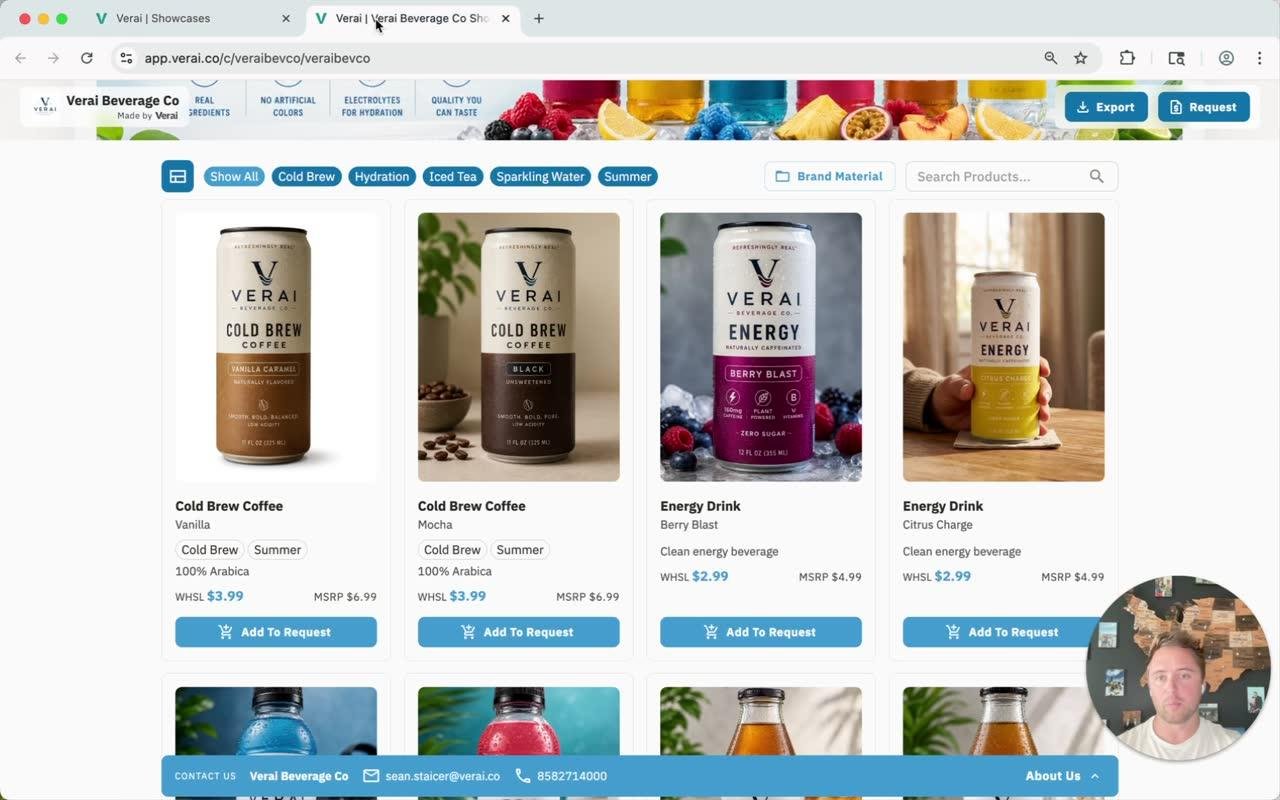
What a buyer sees
- Buyers browse and filter products by tag (for example, Cold Brew, Hydration), search by name, and toggle between viewing individual flavor variants or grouped parent products.
- A Brand Material section lets buyers open supporting documents — a company story, certifications, and more — without having to ask you for them directly.
- Because Verai isn't e-commerce, buyers add items to a Request rather than a cart. No online payment happens through a showcase today.
- Clicking into a product opens a full-screen detail view pulled directly from that product's page: images, documents, tags, and both wholesale and MSRP pricing.

Managing your showcases
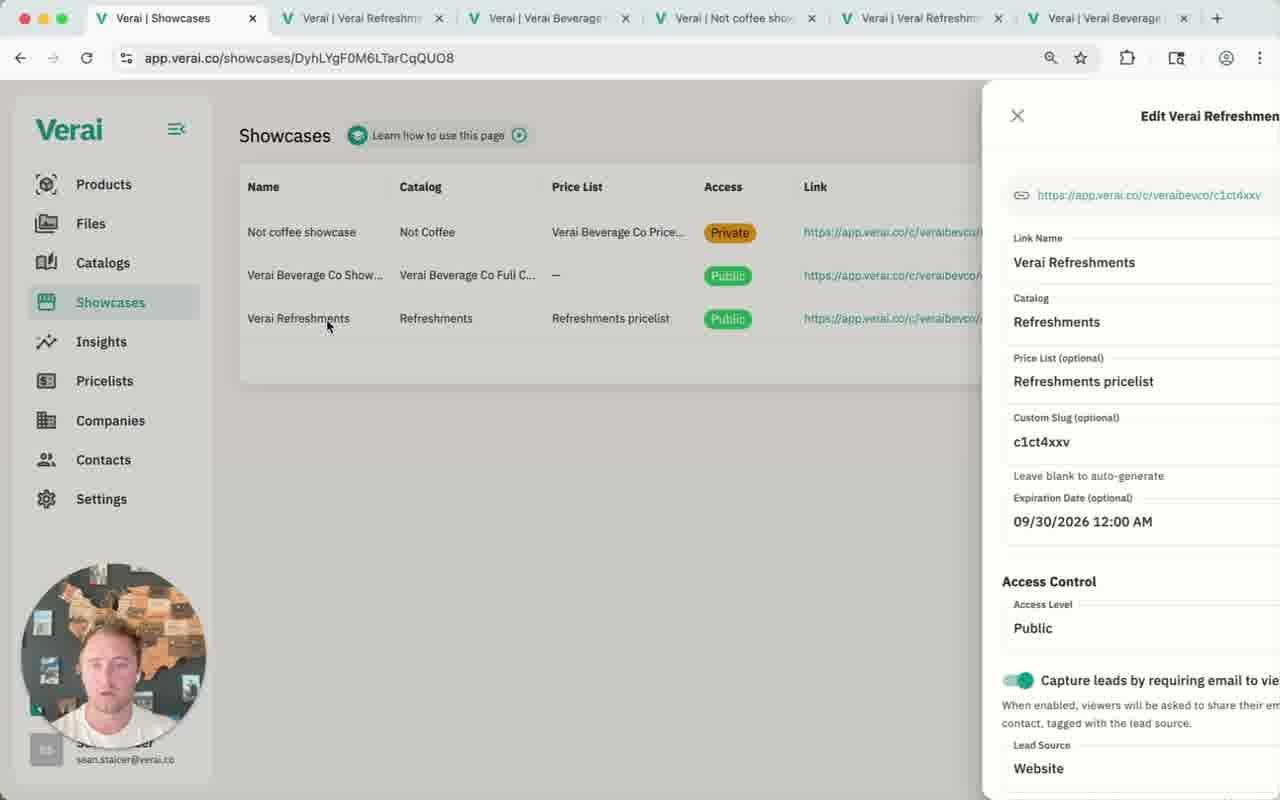
Every showcase you've created is listed on the Showcases page, along with its catalog, price list, access level, shareable link, and expiration date.

The same set of products can power multiple showcases at very different price points. Each showcase can use its own pricelist, so the same item might be $1.99 wholesale on one showcase and $0.99 on another — without ever changing the master product price.
Creating a showcase
- Click Create Showcase and give it a link name.
- Choose the Catalog that supplies its products — this is required, since a showcase can't display products without one.
- Optionally choose a Price List to apply a discount to every product in the showcase.
- Optionally set a custom slug (the end of the shareable URL) and an expiration date, after which the link stops working.
Access control
- Public — anyone with the link can view the showcase.
- Private — restrict access to specific email addresses or entire domains (for example, anyone @sprouts.com). Useful for sending a private wholesale price list to one buyer or team.
- Capture leads by requiring email — keep a showcase public while still prompting visitors for an email address for lead tracking. It isn't required or validated, just requested.
Presentation & branding
- Choose Gallery view (all products side by side) or Product Detail view (jumps straight to one hero product) — Product Detail works best for single-SKU lines.
- Pick up to two Featured Products to highlight, upload a banner image and company logo, and set showcase-specific colors if you want this showcase to look different from your account defaults.
Requests, insights, and sharing
- When a buyer submits a request, it lands in Contacts → Request Inbox, and — once assigned a location — under that company's Requests & Orders tab.
- Generate a QR code for print materials or trade shows, and export or duplicate a showcase from the Actions menu.
- Every showcase view feeds the Insights dashboard. The more visitors who share their email, the richer those analytics get.
Related guides
See How Catalogs Work, How Pricelists Work, and the Verai Settings Guide for how each of these pieces plugs into a showcase.
Questions? Use the Help & Support button in the bottom-left corner of Verai to send us a message — we'll get back to you as soon as possible.